▶
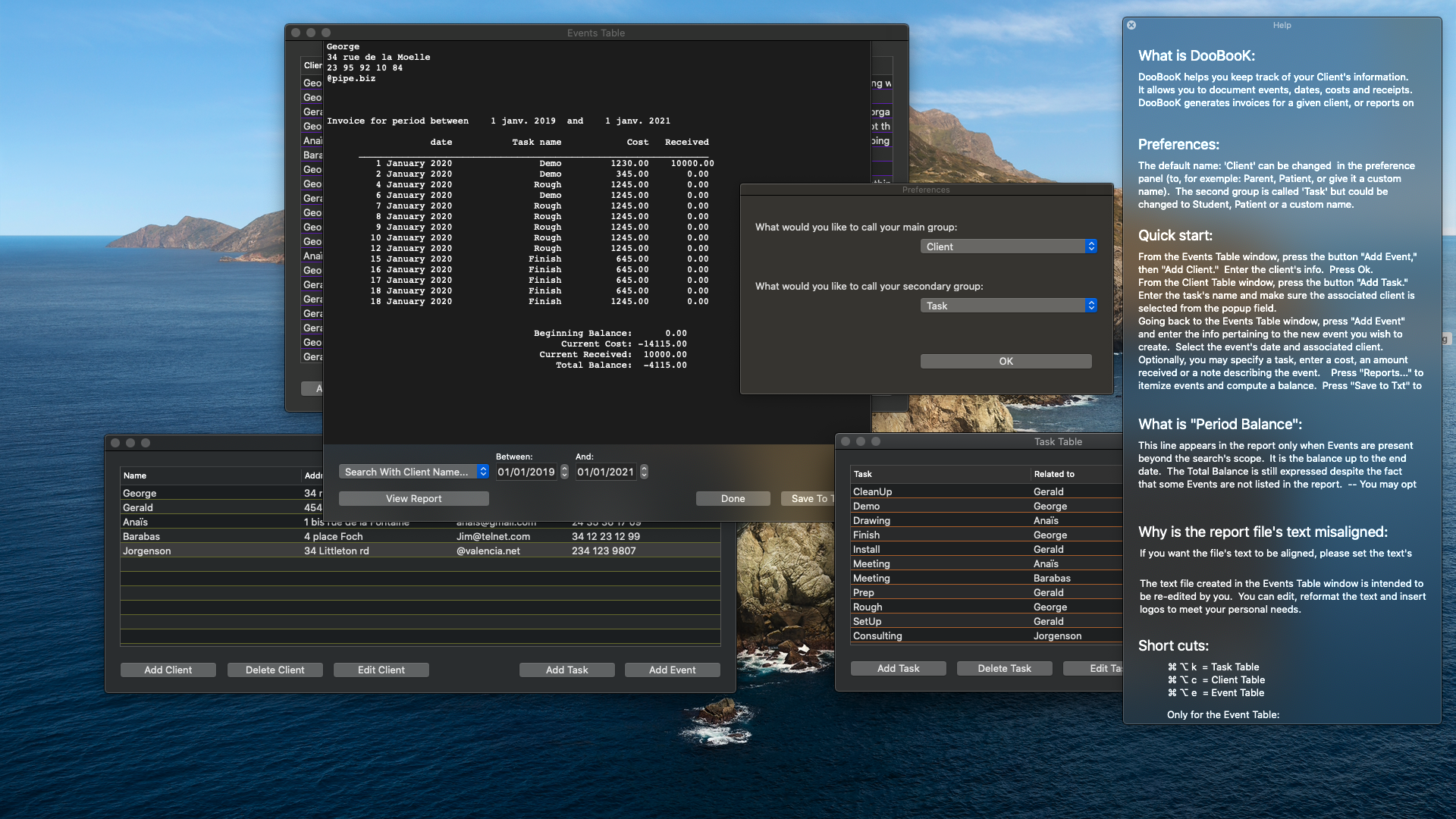
DooBooK’s User Interface can — and should — be modified according to your business profile (i.e. renaming buttons and tables):
The default table name: 'Client' can be changed in the preference panel (to, for example: Parent, Patient, or give it a custom name). The other main table name: ‘Task' could be changed to Student, Patient, etc. making it a true database and not an Excel sheet.
▶
From the Events Table window, press the button "Add Event," then "Add Client." Enter the client's info. Press Ok. From the Client Table window, press the button "Add Task." Enter the task's name and make sure the associated client is selected from the popup field. Going back to the Events Table window, press "Add Event" and enter the info pertaining to the new event you wish to create. Select the event's date and associated client. Optionally, you may specify a task, enter a cost, an amount received or a note describing the event. Press "Reports..." to itemize events and compute a balance. Press "Save" to generate an invoice on the location of your choice.
▶
This line appears in the report only when Events are present beyond the search's scope. It is the balance up to the end date. The Total Balance is still expressed despite the fact that some Events are not listed in the report. -- You may opt to edit the saved text...
▶
If you want the file's text to be aligned, please set the text's font to a fixed width (ie: courier). The text file created in the Events Table window is intended to be re-edited by you. You can edit, reformat the text and insert logos to meet your personal needs.
▶
Command - Option - K = Task Table
Command - Option - C = Client Table
Command - Option - E = Event Table